As I already showed in another post, the one where I build an automatic curation system for my Steam library, I like playing games, mostly on Valve’s platform. Since I stopped playing Diablo III somewhere around the end of 2018, my relationship with games has been that of someone who likes having a catalog to reach for at any moment. Add to that the fact that I’m past 30, and you get a problem I’ve been trying to solve for years: forgetting what I actually played.
That’s why, since the pandemic, I make a point of recording every gameplay session and uploading it privately to my YouTube. From the beginning I used Advanced Scene Switcher, an OBS plugin, to record the sessions automatically. And it brought a whole series of problems:
- Some games were never detected automatically.
- OBS had to be fully open, even for something that simple.
- File names were not automatic.
- The whole upload process was manual: description, title, everything.
- I had to limit the uploads to games with a campaign, skipping every multiplayer match so I wouldn’t waste my time uploading. So that one highlight play in online competitive (which in my case happens once every 1000 matches) was lost forever.
Since I haven’t used Windows in a while and moved to Omarchy (which I’ll write about at some point), I started thinking about a way to automate this whole process, as performant as possible, integrated with the ecosystem of the distro created by DHH.
And that’s how grifone was born.

The Stack
Developer section alert!
Those who follow me already know that Go is my main language, and I’m not going to repeat the sermon about goroutines from the curator post. What I will say is that this project is exactly the kind of thing Go was made for: a recorder process, a background worker and a terminal interface all running at the same time, talking to the same database, shipped as one static binary. No runtime, no interpreter, no node_modules. You copy the file to ~/.local/bin and it works.
The big difference from the Steam curator is that this time there is no web frontend. An application that lives inside Omarchy has to live inside the terminal, otherwise it feels like a tourist. So the interface is a TUI built with Bubble Tea and the commands are handled by Cobra. Both are from the Go ecosystem, both are boring, both work. And no, before you ask, there is no Electron here. I already explained in the other post how I feel about running Chromium to show a screen.
Now, do you remember the confession I made in the curator post? That the project was screaming for SQLite and I picked MongoDB for convenience? Well, this time I listened. SQLite in WAL mode, through a pure Go driver, so I don’t even have to deal with CGO. Every recording, every failure, every upload attempt goes there. It’s a single file in ~/.local/share, and honestly, it’s all the “database” this thing will ever need.
For the actual capture I didn’t write a single line of video code, and I’m proud of that. Omarchy already ships gpu-screen-recorder, which talks directly to NVIDIA’s NVENC encoder, so recording 1080p at 60 FPS costs almost nothing in CPU. And FFmpeg takes care of stitching the pieces together at the end. The OAuth token for YouTube goes into the system keyring, not into a text file. In short: Go for the glue, SQLite for the memory, the tools that were already on the machine for the heavy lifting.
The Architecture
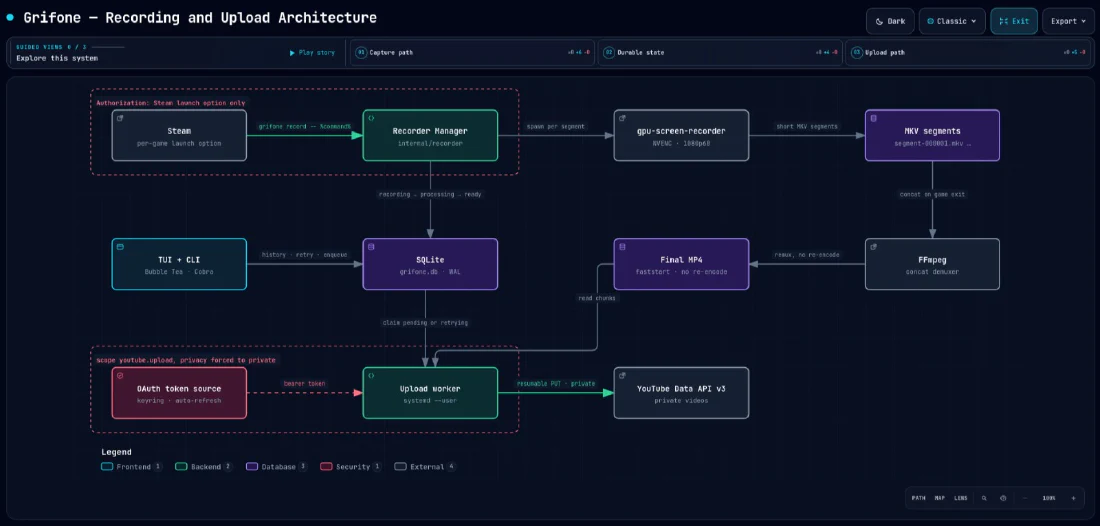
There are three paths in this diagram and I want to walk through them, because they are the whole point of the project.
The first one is the capture path, the top row. Steam runs the game through grifone, grifone hands it to gpu-screen-recorder, and gpu-screen-recorder writes short MKV segments to disk. When the game exits, FFmpeg concatenates the segments into a final MP4. No re-encoding at any point: the video that comes out is the video that went in.
The second one is the durable state, the middle. Everything passes through SQLite. A session is written to the database before the first frame is captured, and it moves through a small life cycle: recording, processing, ready, and later uploading and uploaded. The TUI reads from it, the worker reads from it, and if anything dies halfway, the database is what tells the next process where things stopped.
The third one is the upload path, the bottom row. A background worker claims pending sessions from the database, reads the final MP4 and pushes it to the YouTube Data API using a resumable upload. The token comes from the keyring and the privacy is forced to private inside the code, not in a setting I can forget to toggle.
Notice that recording and uploading never touch each other. That was a deliberate decision, and I’ll come back to it.
How It Works in Practice
You open the properties of a game in Steam and add one line to the launch options:
grifone record -- %command%
That’s it. Games without this line are never recorded. I wanted an opt-in system, not a detection system, because detection is exactly what failed me for years with OBS. Here grifone doesn’t need to guess what is running: it is the process that launched the game.
When the game starts, grifone registers the session in SQLite, takes a filesystem lock (only one recording at a time, always) and spawns gpu-screen-recorder. Instead of one giant file, it rotates a new MKV segment every 5 minutes. That’s not a recording limit, the game can run for six hours, it’s a crash insurance. If the game freezes the whole machine, or the power goes out, I lose at most the segment being written. Everything before it is already closed and safe.
When the game exits, FFmpeg concatenates the segments into an MP4 with faststart, which takes seconds because nothing is re-encoded, the temporary files are cleaned up and I get a desktop notification. If a previous session was interrupted, it is recovered automatically before the next recording begins. And if free disk space drops below 10 GiB the recording stops gracefully and keeps what it has, because a full disk in the middle of a boss fight is a problem I don’t want to have twice.
The Automatic Upload
The upload lives in a user systemd service, the worker. You install it once from the TUI (or with grifone service install) and forget it exists. It wakes up, looks in the database for anything pending or worth retrying, and uploads it to YouTube as a private video, with exponential backoff when Google decides to have a bad day.
The title is generated from a template with the game name, the date and the duration of the session, so I never type a title again. The privacy is private and enforced: the OAuth scope only allows uploading, and the worker refuses to publish anything else. Uploads are resumable, so a dropped connection continues from where it stopped instead of starting over. And the moment I connect a YouTube account, every recording already sitting on disk is queued automatically. Optionally, the local file can be deleted after the upload is confirmed, and the deletion is tracked in the history too.
Here is why the separation matters: a quota error, an expired token, a bad Wi-Fi night, none of that can interrupt a recording. The worst case is a video that waits a little longer in the queue. The gameplay is never at risk.
The TUI
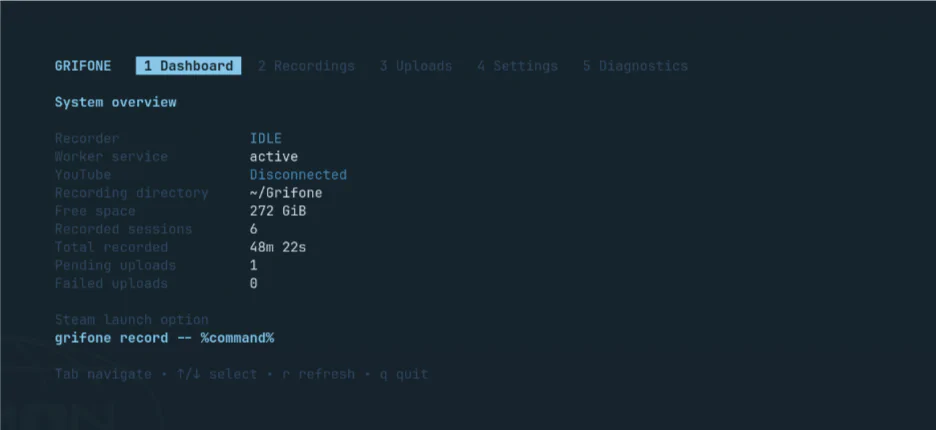
Running grifone with no arguments opens the control center. Five sections, jumped with the number keys or Tab, and this is what each one does.
Dashboard is the overview: whether the recorder is idle or capturing, whether the worker is alive, the YouTube connection, free space, how many sessions were recorded and how much time they add up to. It also prints the Steam launch option, because I kept forgetting the exact syntax.
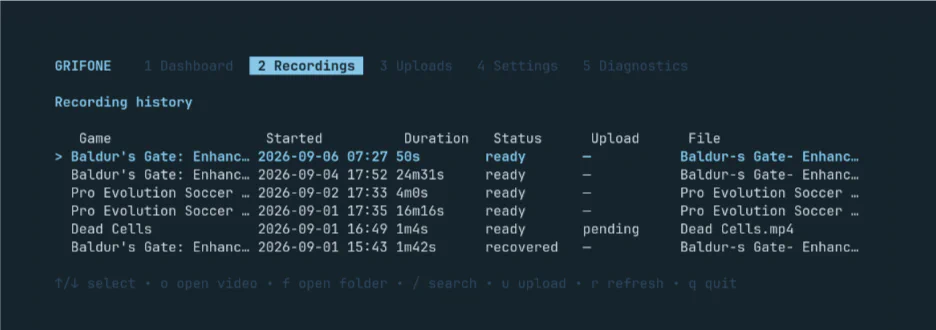
Recordings is the full history, searchable by game or status with /. From here you open a recording in the system video player, open its folder, or queue it for upload. Note the “recovered” status in the last row: that was a session interrupted halfway, finalized automatically from its segments.
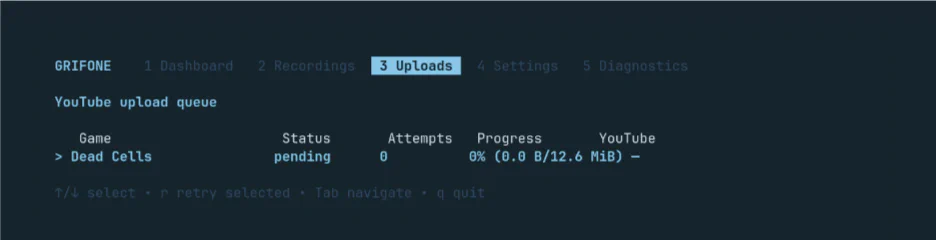
Uploads shows the YouTube queue: status, attempts and progress of each upload, updated live, with a key to retry a failed one.
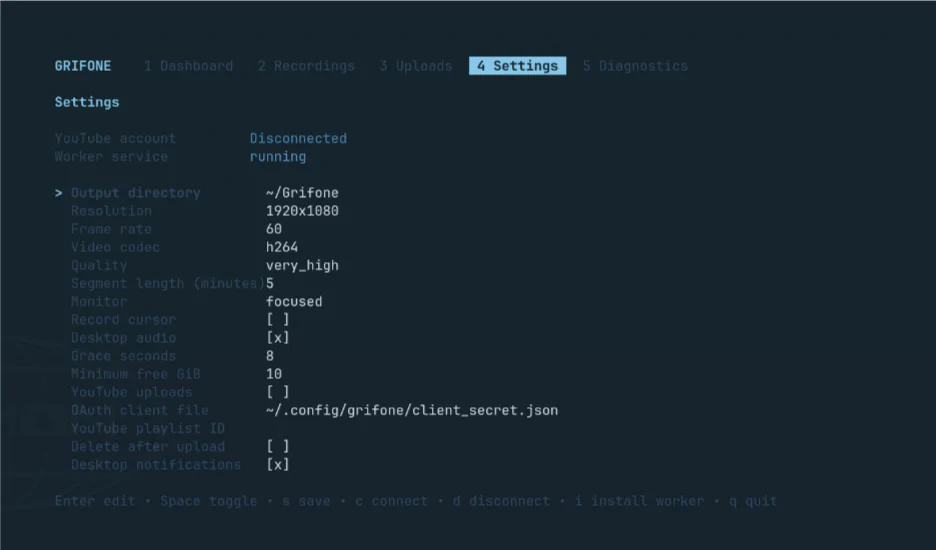
Settings is where everything is configured: output directory, resolution, frame rate, codec, quality, segment length, which monitor to capture, cursor, desktop audio, minimum free space, notifications, delete after upload, and the YouTube account itself, connected and disconnected right here. The OAuth flow opens in the browser and the token lands in the keyring. Everything is saved as TOML in ~/.config/grifone.
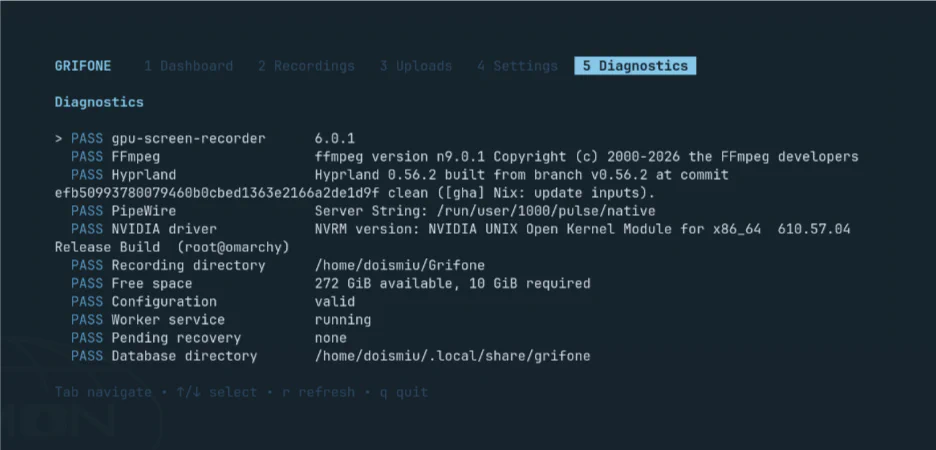
Diagnostics runs the same checks as grifone doctor, so you know if gpu-screen-recorder, FFmpeg, Hyprland, PipeWire and the NVIDIA driver are where they should be before you find out during a session.
There’s also a detail I’m a bit too happy about: the TUI detects the active Omarchy theme and switches its palette to match. Change the theme, grifone follows. Totally unnecessary and totally worth it.
Was It Worth It?
Let’s go back to the list from the beginning, because that’s the only honest way to measure this.
Games not detected. Gone. There is no detection anymore, there is a launch option. If a game has the line, it is recorded. If it doesn’t, it isn’t. Zero ambiguity.
OBS had to be open. Gone. Nothing is open. There is one binary that runs when the game runs and exits when the game exits, plus a worker sleeping in the background.
File names were manual. Gone. Game name, date and time, automatically, in a folder per session.
Upload was manual. Gone. Title, description and privacy are generated, the worker does the rest while I sleep.
Multiplayer was skipped. This is the one that matters to me. Now everything is recorded and everything is uploaded, at zero effort, so that one-in-a-thousand highlight is finally in the archive whether I like it or not.
I’ll be honest about the other side too. Grifone is NVIDIA only, because NVENC is what I have and what I tested. It is Arch and Omarchy only, with Hyprland and PipeWire, because that is my machine and I’m not going to pretend otherwise. And setting up the Google Cloud OAuth client to get a YouTube token is annoying in a way only Google knows how to be. It’s a tool for one person, and that person is me. If it works for someone else, that’s a bonus.
So, why waste time recording gameplay videos that nobody, sometimes not even me, is going to watch?
Because I forget. Because at 30-something, with a kid at home and a few hours per week, a game I played in March already feels like a game I played in another life. The videos are not content. They are the same thing this blog is: an open notebook, just with more frames per second.
And that’s it.
Update: Heroic Games Launcher
Well, the “tool for one person” lasted about a day before that one person wanted more. Not everything I play lives on Steam. There are the GOG games, the Epic (giveaway) ones, the occasional sideloaded thing, and on Linux all of them go through Heroic Games Launcher. Every session started from Heroic was invisible to grifone, which means I was back to the exact problem this post is about: playing something and having no record of it.
So grifone now speaks Heroic too. The setup is the same idea as Steam, just in a different menu: Settings, Advanced, Wrapper command, with grifone as the executable and record as the argument. No %command% here, Heroic appends the game itself. Same opt-in rule as before: no wrapper, no recording.
Under the hood, grifone looks for the environment variable Heroic sets when it launches a game and, if it’s there, resolves the title from Heroic’s own library files, whether the game came from Epic, GOG, Amazon or a sideloaded installer. If nothing matches, the recording is still saved under the app id, because a badly named video beats a missing one.
I’ll be honest, the interesting part was a bug. With Heroic the recording refused to stop after the game exited, because the process scan that decides “is the game still running?” was finding grifone’s own wrapper chain and happily waiting for itself. That’s fixed, the scan now ignores its own ancestors, and along the way I added two things I should have had from the start: a clean stop on SIGINT and SIGTERM that never kills the game, and a key in the TUI to stop an active recording by hand.
The Steam list is still the priority. But now the GOG freebies count too.